
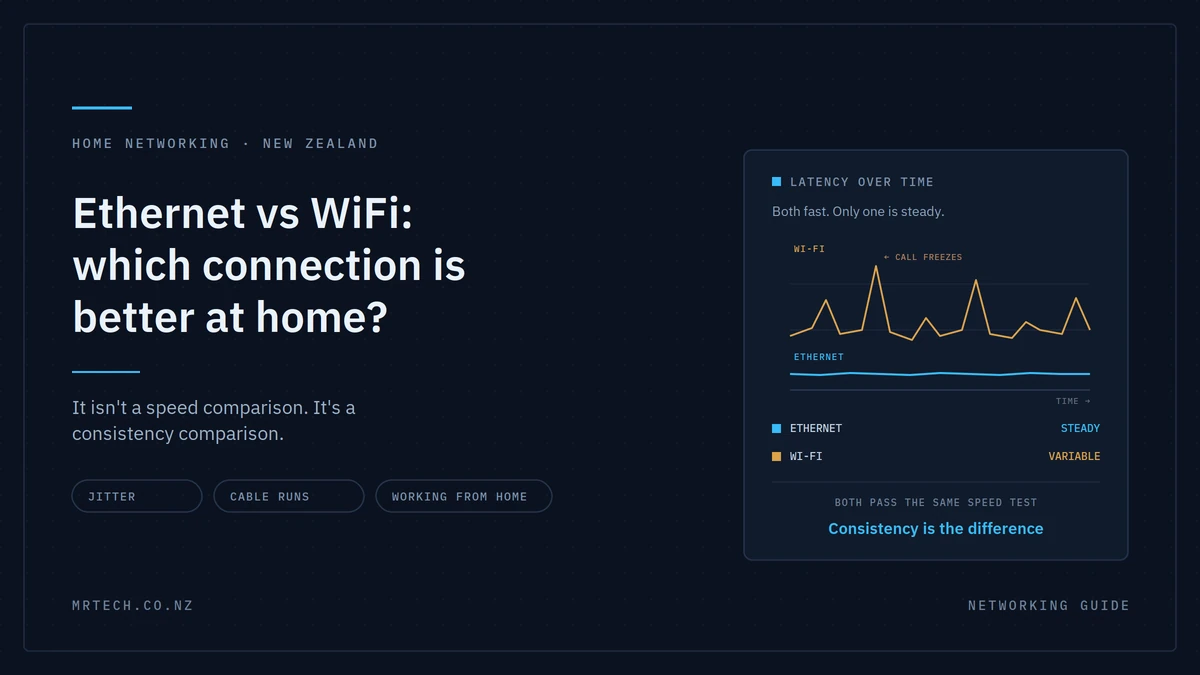
You’re on a 900Mbps fibre plan. The speed test says 850 down. And at 2pm on a Tuesday your video call freezes mid-sentence while someone upstairs is watching Netflix.
That gap between the number you’re paying for and the experience you’re getting is what the Ethernet vs WiFi question is really about. It isn’t a speed comparison modern WiFi can outrun most fibre plans. It’s a consistency comparison, and that’s where the two genuinely differ.
Ethernet vs WiFi
The short answer
Ethernet is better for anything that stays in one place: a desktop, a console, a smart TV, your work setup. WiFi is better for everything that moves. Most New Zealand homes should use both, and the only real question is which devices get a cable.
You’re not picking a side. You’re deciding where the cable goes.
Speed is the wrong comparison
Modern WiFi standards can exceed the peak speed of most fibre plans available in New Zealand, so raw bandwidth rarely decides this. What separates wired from wireless is how steady the connection is from one second to the next.
Nobody has ever noticed the difference between 400Mbps and 900Mbps on a video call. Everybody notices 40 milliseconds of jitter.
What actually causes the problems you notice
Three measurements, and each produces a different symptom:
- Latency — how long a packet takes to make the trip. High latency feels like lag: you click, and something happens a moment later.
- Jitter — how much that delay varies. This is what makes voices go robotic and video freeze then catch up in a rush.
- Packet loss — data that doesn’t arrive at all. Dropped words, frozen frames, a game rubber-banding you back to where you were.
Bandwidth barely features. A video call uses a few megabits per second; the reason it fails is almost never that you ran out of speed.
Why your fibre plan isn’t the bottleneck
Here’s the part that saves people money. On a 900Mbps plan, the limiting factor inside most homes is the WiFi, not the connection coming into the house.
Run a speed test on a device plugged into the router, then the same test on a phone in a back bedroom. If the wired result is close to your plan and the wireless one isn’t, upgrading your plan will change nothing you’d be paying more for capacity that never reaches the device.
Why WiFi is inherently less consistent
Not a criticism of any particular router. These are structural properties of how wireless works, and no amount of money fixes them entirely.
It’s shared airtime
Every device on a WiFi channel takes turns transmitting. Only one can talk at a time, and the others wait. Add more devices and everyone’s wait gets longer.
This is why your connection degrades when the household is busy rather than when you are doing something demanding. Four people streaming, a dozen smart home devices checking in, someone’s phone backing up photos they are all queuing for the same airtime you need for your call.
An Ethernet cable isn’t shared with anything. It’s a dedicated lane to your device.
It’s half-duplex
WiFi can’t send and receive at the same time; it alternates. Ethernet can do both simultaneously.
For a video call where you’re uploading your camera feed and downloading everyone else’s continuously that difference is felt directly. It’s part of why calls are the first thing to suffer on a busy wireless network.
It’s competing with your neighbours
Your WiFi shares the airwaves with every other network in range. In a townhouse, apartment building or tightly packed subdivision, that can be dozens of networks, and 2.4GHz has only three non-overlapping channels for all of them.
It’s also why performance is often worse in the evening. Everyone’s home, everyone’s streaming, and the air is crowded.
Walls, distance and interference
Building materials absorb and reflect signal, and every metre from the router costs you. Foil-backed insulation is particularly effective at stopping WiFi our guide to fixing WiFi dead zones covers that side properly rather than repeating it here.
Where Ethernet clearly wins
Any device that doesn’t move has no reason to be wireless, and several use cases benefit substantially.
- Competitive gaming. Consistent latency matters far more than peak speed. Jitter is what makes a shot register late; a cable removes it almost entirely.
- Video calls and remote work. The freezing and robot voice come from jitter and packet loss, both of which a wired connection largely eliminates. If your calls are unreliable, this is the single highest-impact change you can make.
- 4K streaming to a fixed TV. It sits in one place forever. Cable it and stop thinking about buffering.
- NAS, backups and large file transfers. Sustained throughput is exactly where WiFi’s variance is most visible — a 50GB transfer that stalls repeatedly is miserable.
- Access points. This is the one people miss: the best thing you can do for your WiFi is give the access point a wired connection. More on that below.
Where WiFi clearly wins
Not a consolation prize — for most devices in most homes, WiFi is genuinely the right answer.
- Phones and tablets. Obviously. “Just use Ethernet” is not advice for a phone.
- Laptops that actually move. If it goes from desk to couch to kitchen table, wireless is the point.
- Smart home devices. Sensors, bulbs, cameras, speakers. Cabling forty of them isn’t realistic, and most send tiny amounts of data.
- Anywhere cable is genuinely impractical. Rentals, solid concrete, heritage buildings, or a room where the run would be ugly enough that you’d resent it.
A well-designed wireless network handles ordinary household use comfortably. The problems come from a badly placed router, not from WiFi as a technology.
The comparison, spec by spec
| Ethernet | WiFi | |
|---|---|---|
| Real-world speed | Close to the port rating, consistently | Varies with distance, walls and load |
| Latency | Very low and stable | Higher and variable |
| Jitter | Minimal | The main cause of call and game problems |
| Under household load | Unaffected — dedicated link | Degrades as devices share airtime |
| Duplex | Full — sends and receives at once | Half alternates |
| Security | Physical access required | Depends on encryption and password strength |
| Setup effort | Running a cable | Connect and go |
| Cost | Cable, plus labour if you don’t DIY | Already in your router |
| Mobility | None | The whole point |
| Best for | Desktops, consoles, TVs, NAS, access points | Phones, tablets, laptops, smart home |
What running Ethernet actually involves in a New Zealand home
Easier than most people assume in a standalone single-storey house, harder in a two-storey or concrete build. Here’s the realistic ladder, from simplest to hardest.
The easy wins
Start with what needs no construction at all:
- Router-adjacent devices — if the TV or console is in the same room as the router, that’s a two-minute job with a patch lead.
- A run along the skirting board with adhesive clips, which comes off cleanly later.
- A flat cable under a door frame into the next room.
These solve a surprising share of problems and cost twenty dollars.
Through the ceiling or under the floor
Most standalone NZ homes have accessible roof space, which makes running cable between rooms straightforward up the wall cavity, across the ceiling, down again. Older villas and bungalows on piles often have a workable subfloor instead, which is even easier.
The genuinely easy case is a single-storey house with accessible roof space. The awkward one is a two-storey where you need to get between floors.
When to call someone
Multi-storey, concrete or block construction, fully insulated walls, or anywhere you’d rather not cut a hole and hope. Data cabling isn’t prescribed electrical work the way mains wiring is, so you can legally do it yourself — but a professional job is faster, tidier, and properly terminated at both ends.
Worth getting a quote before assuming it’s out of reach. A single run in an accessible house is often less than people expect.
What cable to use
Cat6 is the sensible default. It handles gigabit comfortably with headroom for faster speeds later, and the price difference over Cat5e is small on a domestic-length run.
Cat5e still does gigabit perfectly well, so there’s no need to replace existing runs that work. Whatever you use, stay within the 100m limit and that’s the total run including the patch leads at both ends
If you can’t run cable
Renting, concrete walls, or a landlord who won’t allow drilling all legitimate. Here are the alternatives, ranked by how much performance they cost you.
Powerline adapters send data over your existing electrical wiring. They work well when both sockets are on the same circuit, and noticeably worse across circuits, through RCDs, or in older wiring. Cheap enough to try and return if they don’t help.
MoCA over coaxial cable appears in American guides constantly. Most NZ homes don’t have distributed coax, so it rarely applies here.
Mesh with wired backhaul is the best middle ground if you can run even one cable. Mesh with wireless backhaul works, but each hop costs throughput the node has to receive and rebroadcast on the same radio.
Better WiFi is a real answer. A well-placed access point beats a badly planned cable run. If moving your router or adding one AP fixes the problem, that’s not a compromise that’s the correct fix.
The setup most homes should actually have
Cable everything that stays still, use WiFi for everything that moves, and run one cable to a well-placed access point. That last item improves both halves of your network at once.
The access point is the piece people overlook. Wired to a good position central, high, away from the corner where the fibre happened to be terminated it gives you strong WiFi where you actually use it, while your desk and TV run on cable.
A worked example
A typical three-bedroom home with a home office:
- Cabled: desktop in the office, smart TV in the lounge, console
- One cable to a ceiling or hallway-mounted access point, roughly central
- WiFi: phones, tablets, laptops, smart home devices
- Result: the office and lounge get wired stability, and the wireless devices get a stronger, less congested network because three heavy users are off the air
If you’re powering that access point over the same cable, our guide to PoE switches covers whether you need a switch or just an injector.
FAQs
Is Ethernet really faster than WiFi?
Not always in peak speed modern WiFi can exceed most fibre plans. Ethernet is more consistent, with lower latency, minimal jitter and no degradation when other devices are busy. That consistency is what you actually notice.
Does Ethernet reduce lag for gaming?
Yes, and it’s the most effective single change most gamers can make. Wired connections have lower and far more stable latency, and stable latency is what matters in competitive play jitter causes more problems than raw ping.
Do I need Ethernet if I have fibre?
Fibre delivers speed to your house; WiFi distributes it inside. On a fast plan the wireless network is usually the bottleneck, so cabling stationary devices is often what lets you actually use the speed you’re paying for.
Can I run Ethernet cable myself in New Zealand? Y
es. Data cabling isn’t prescribed electrical work the way mains wiring is, so DIY is legal. Whether it’s practical depends on your house accessible roof space makes it straightforward, two-storey or concrete construction less so.
What’s better for working from home, Ethernet or WiFi?
Ethernet, if your desk is fixed. Call quality problems are usually jitter and packet loss rather than insufficient bandwidth, and a cable largely removes both. It’s the cheapest fix for unreliable video calls.
Are powerline adapters as good as Ethernet?
No, but they’re often better than weak WiFi. Performance depends heavily on your electrical wiring same-circuit runs work well, while crossing circuits or older wiring can cut throughput substantially. Worth trying where cable isn’t an option.
Should I use Ethernet or WiFi 7?
For a stationary device, Ethernet newer WiFi standards improve speed and congestion handling but remain shared and half-duplex. WiFi 7 is a genuine upgrade for mobile devices, not a replacement for a cable to your desk.


 No products in the cart.